
The GeMRTOS design flow for Nios V FPGA development uses command-line tools that require a Linux-compatible environment on Windows. Versions of Quartus Prime above v22.0 use the Windows Subsystem for Linux (WSL) instead of the legacy Cygwin environment. This guide covers the complete installation of Quartus Prime v22.0 and WSL on Windows 10 64-bit, including the Ubuntu 18.04 distribution and all build tools required for the GeMRTOS design flow.
Step 1: Download and Install Quartus Prime #
From the intel.com website, download Quartus Prime v22.0 (or later) with Questa — Intel Starter Edition. Select the desired FPGA device families during installation and follow all installation instructions to completion.
Step 2: Install and Configure WSL #
Run PowerShell as Administrator and execute the following steps in order.
Install WSL:
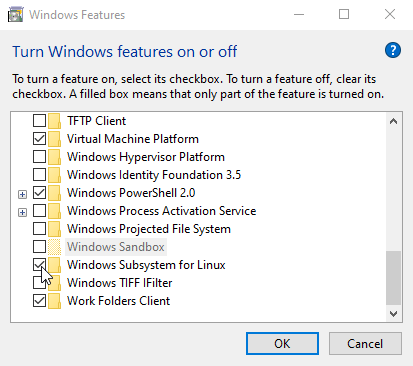
wsl --installIn Windows Features, ensure the Windows Subsystem for Linux option is enabled.

Restart WSL to apply changes:
wsl --shutdownInstall Ubuntu 18.04 (username and password required):
wsl --install -d Ubuntu-18.04 (username and password is required)To check available distributions before installing:
wsl --list --onlineNote: in virtual machines, error 0x80370102 may occur. It is solved by executing: wsl --update wsl --set-default-version 1 wsl --shutdown and then trying again wsl --install -d Ubuntu-18.04Configure the WSL environment for GeMRTOS (confirm all prompts):
sudo apt update
sudo apt install wsl
sudo apt install dos2unix
sudo apt install make
sudo apt install build-essential
Key Takeaways #
- Quartus Prime versions above v22.0 use WSL for GeMRTOS command-line design flow on Windows — Cygwin is only required for older versions.
- WSL must be installed and restarted (
wsl --shutdown) before adding a Linux distribution; skipping the restart is a common cause of installation failures. - The GeMRTOS design flow requires Ubuntu 18.04 plus four packages:
wsl,dos2unix,make, andbuild-essential. - On virtual machines, error 0x80370102 can be resolved with
wsl --updateandwsl --set-default-version 1before retrying the Ubuntu installation. - Once installed, use gemrtos_build.sh within the WSL environment to execute the full GeMRTOS Nios V build and programming flow.
Reference: [1] “2.3.1. Installing Windows* Subsystem for Linux* (WSL) on Windows*,” Intel. https://www.intel.com/content/www/us/en/docs/programmable/683472/22-1/installing-windows-subsystem-for-linux.html


